- Published on
- 12 min read
Making publication-ready figures in R with ggplot2
- Authors

- Name
- BioTech Bench
Table of contents
This is Arc 1, Part 4 of the R for Biologists series.
The figure that took three hours in GraphPad
You've run the analysis. You have your means and standard deviations. Now you need a figure for the paper.
So you open GraphPad Prism. You paste your data into the table, pick a chart type, adjust the axis range, set the font to Arial because the journal requires it, change the point size, add the error bars, realize the default error bar is SEM not SD and go back and change it, export as TIFF, open it in Photoshop to check the DPI, see that it's 72 dpi instead of 300, go back to GraphPad, re-export — and that's 45 minutes for one gene.
You have five genes.
ggplot2 is the R package that ends this cycle. You describe the figure you want in code, run it, and get a pixel-perfect plot that you can re-export at any size or resolution with one line. Change the color scheme? One word. Add a panel for each gene? One line. Re-run on a different dataset? Just swap the data source.
By the end of this post, you'll have three figures: a dot plot with error bars, a bar chart, and a multi-panel plot with one panel per gene. All from the qPCR summary table we built in the last post.
What you'll learn
By the end of this post, you'll be able to:
- Understand ggplot2's core idea: data → aesthetic mappings → layered geoms
- Build a dot plot with error bars from summarized data
- Build a bar chart using the same scaffold, just swapping the geom
- Build a multi-panel figure with
facet_wrap()— one panel per gene - Save figures at publication resolution with
ggsave()
Setup
Install ggplot2 if you haven't already. It's part of the tidyverse, so if you installed that package in an earlier post, you're already set:
install.packages("ggplot2")  # skip if you have tidyverse
library(ggplot2)
library(dplyr)
library(readr)
Now load the qPCR data and rebuild the summary table from the last post. This makes the post self-contained — you don't need that session's output:
data <- read_csv("qpcr_long.csv")

qpcr_summary <- data |>
  filter(ct_value < 35) |>
  group_by(group, gene) |>
  summarise(
    mean_ct = mean(ct_value),
    sd_ct   = sd(ct_value),
    n       = n(),
    .groups = "drop"
  )

qpcr_summary
# A tibble: 15 × 5
   group      gene  mean_ct sd_ct     n
   <chr>      <chr>   <dbl> <dbl> <int>
 1 Control    ACTB     19.8 0.173     6
 2 Control    GAPDH    21.1 0.196     6
 3 Control    IL10     32.0 0.293     6
 4 Control    IL6      30.9 0.338     6
 5 Control    TNF      29.8 0.238     6
 6 LPS_1ng    ACTB     20.1 0.145     6
 7 LPS_1ng    GAPDH    21.1 0.222     6
 8 LPS_1ng    IL10     29.3 0.401     6
 9 LPS_1ng    IL6      27.3 0.352     6
10 LPS_1ng    TNF      27.2 0.196     6
11 LPS_10ng   ACTB     19.9 0.134     6
12 LPS_10ng   GAPDH    21.2 0.220     6
13 LPS_10ng   IL10     27.2 0.306     6
14 LPS_10ng   IL6      23.9 0.320     6
15 LPS_10ng   TNF      24.1 0.289     6
15 rows: 3 groups × 5 genes. One row per gene-group combination, with the mean Ct, standard deviation, and sample count.
How ggplot2 thinks
Before building anything, here is the core idea you need to know. ggplot2 works in layers. You start with ggplot() and tell it which dataset to use and which columns map to which visual properties (axes, colors, shapes). Then you add geoms — the actual visual elements — with +. Every line you add is another layer on the same canvas:
ggplot(data, aes(x = column_for_x, y = column_for_y)) +
  geom_something() +
  geom_something_else() +
  labs(title = "...") +
  theme_classic()
That's the full pattern. Everything you build in this post is a variation of it.
Figure 1: Dot plot with error bars
Start with IL-6 only — one gene, one group comparison, no distractions. First, pull out the IL-6 rows and convert group to a factor so R plots the groups in a meaningful order instead of alphabetically:
il6_summary <- qpcr_summary |>
  filter(gene == "IL6") |>
  mutate(group = factor(group, levels = c("Control", "LPS_1ng", "LPS_10ng")))

il6_summary
# A tibble: 3 × 5
  group    gene  mean_ct sd_ct     n
  <fct>    <chr>   <dbl> <dbl> <int>
1 Control  IL6      30.9 0.338     6
2 LPS_1ng  IL6      27.3 0.352     6
3 LPS_10ng IL6      23.9 0.320     6
Step 1: Get the points on the canvas
ggplot(il6_summary, aes(x = group, y = mean_ct)) +
  geom_point(size = 3)
You get three dots — one per group — at the correct Ct values. The axes are labeled with the raw column names and the groups appear in the right order (Control → LPS_1ng → LPS_10ng). It's not pretty yet, but the data is right.
Step 2: Add error bars
ggplot(il6_summary, aes(x = group, y = mean_ct)) +
  geom_point(size = 3) +
  geom_errorbar(
    aes(ymin = mean_ct - sd_ct, ymax = mean_ct + sd_ct),
    width = 0.1
  )
geom_errorbar() needs its own aes() call because the min and max values are calculated from columns — they're not direct mappings like x and y. The width = 0.1 controls the horizontal cap width of the error bar. The standard deviation here is small (~0.3 Ct) because these are simulated data — in real experiments you'd typically see larger variation.
Step 3: Labels, orientation, theme
ggplot(il6_summary, aes(x = group, y = mean_ct)) +
  geom_point(size = 3) +
  geom_errorbar(
    aes(ymin = mean_ct - sd_ct, ymax = mean_ct + sd_ct),
    width = 0.1
  ) +
  coord_flip() +
  labs(
    title = "IL-6 expression by treatment group",
    x     = NULL,
    y     = "Mean Ct value (lower = more expressed)"
  ) +
  theme_classic()
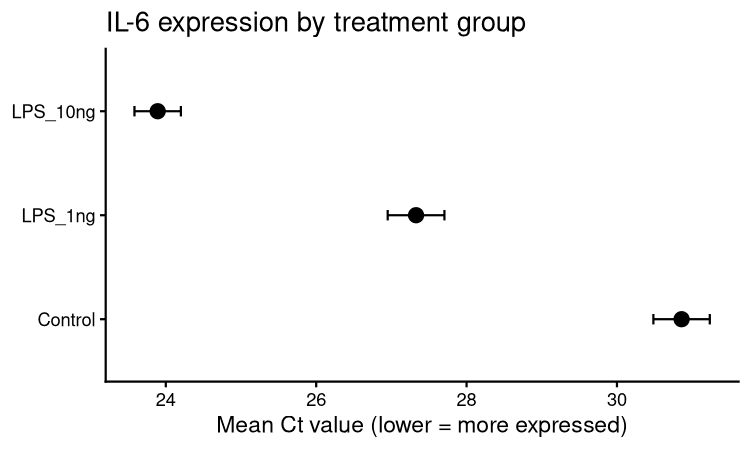
coord_flip() rotates the plot 90 degrees so the groups run along the y-axis. For a three-group comparison with long group names, horizontal layouts are easier to read. labs() sets the title and axis labels — x = NULL removes the redundant "group" label since the group names speak for themselves. theme_classic() strips the grey background and gridlines, giving you the clean white plot style most journals expect.
That's a publication-ready IL-6 dot plot in twelve lines of code.
Figure 2: Bar chart with error bars
Bar charts are still the default in many journals and lab meeting slides. Here's the same IL-6 data as a bar chart — the only change from Figure 1 is swapping geom_point() for geom_col():
ggplot(il6_summary, aes(x = group, y = mean_ct)) +
  geom_col(fill = "steelblue", width = 0.6) +
  geom_errorbar(
    aes(ymin = mean_ct - sd_ct, ymax = mean_ct + sd_ct),
    width = 0.2
  ) +
  coord_flip() +
  labs(
    title = "IL-6 expression by treatment group",
    x     = NULL,
    y     = "Mean Ct value (lower = more expressed)"
  ) +
  theme_classic()
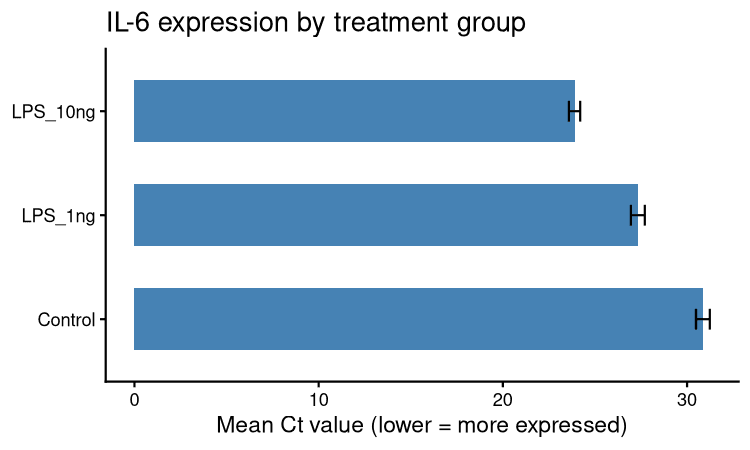
The grammar is identical. The geom changed; everything else stayed the same.
Bars vs dots: which should you use?
The short answer: dots are increasingly preferred, but bars are still accepted in most fields.
The problem with bars is that they hide the data. A bar that reaches to 27.3 tells you the mean — but it obscures how many data points that mean is based on and how spread out they are. When you have three biological replicates, the bar is built on exactly three numbers. Reviewers and statisticians increasingly want to see those numbers, not just the aggregate.
Dot plots (and even better, strip plots showing individual points) are the alternative. They show the mean and uncertainty without hiding the raw data behind a colored rectangle.
That said, many journals still default to bar charts in published figures, and some PIs strongly prefer them. Now you know how to make both, and you know the argument for each. Pick whichever matches your field's conventions — the code change is one word.
Figure 3: Multi-panel facet plot
Here's where ggplot2 starts to feel genuinely powerful. In GraphPad, making a separate panel for each of your five genes means creating five separate charts, formatting each one individually, and then assembling them in Illustrator or PowerPoint. In R, it's one line: facet_wrap(~ gene).
qpcr_summary |>
  filter(!gene %in% c("GAPDH", "ACTB")) |>
  mutate(group = factor(group, levels = c("Control", "LPS_1ng", "LPS_10ng"))) |>
  ggplot(aes(x = group, y = mean_ct)) +
  geom_point(size = 2.5) +
  geom_errorbar(
    aes(ymin = mean_ct - sd_ct, ymax = mean_ct + sd_ct),
    width = 0.15
  ) +
  facet_wrap(~ gene, nrow = 1) +
  coord_flip() +
  labs(
    x = NULL,
    y = "Mean Ct value"
  ) +
  theme_classic() +
  theme(
    strip.background = element_blank(),
    strip.text       = element_text(face = "bold")
  )
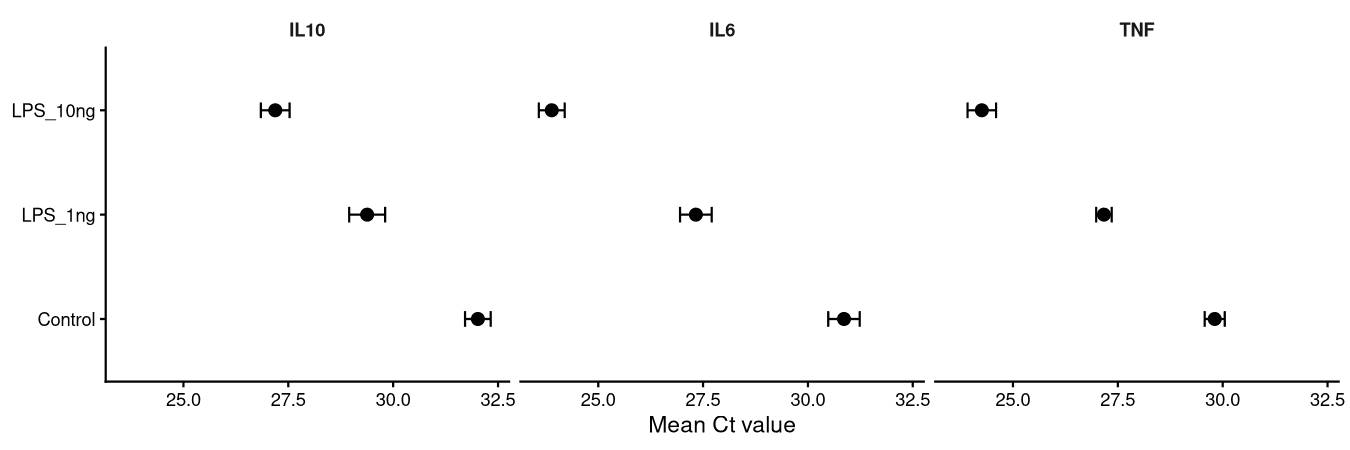
You get a single figure with three side-by-side panels — one for IL-6, one for IL-10, one for TNF — all formatted identically, all on the same scale.
A few things to notice:
filter(!gene %in% c("GAPDH", "ACTB"))removes the reference genes. You wouldn't typically show housekeeping genes in the same panel as your targets.facet_wrap(~ gene, nrow = 1)creates the panels. The~ genemeans "one panel per unique value of the gene column."nrow = 1puts them all in a single row — adjust tonrow = 2orncol = 2to change the layout.strip.background = element_blank()removes the grey header box behind each gene name.strip.text = element_text(face = "bold")makes the gene names bold. Small changes, but they make the figure look substantially cleaner.- The pipe flows directly into
ggplot()— you don't need to save an intermediate data frame.
The dose-response pattern is now visible across all three genes at once: lowest Ct (most expression) in LPS_10ng, highest in Control, LPS_1ng in between.
Saving publication-ready figures
ggsave() saves whatever plot you just ran. By default it saves the last plot displayed:
# Save as PDF (vector — scales to any size without pixelating)
ggsave("il6_dotplot.pdf", width = 5, height = 3)

# Save as TIFF at 300 dpi (required by most journals)
ggsave("il6_dotplot.tiff", width = 5, height = 3, dpi = 300)

# Save as PNG for slides or web
ggsave("il6_dotplot.png", width = 5, height = 3, dpi = 150)
width and height are in inches by default. Check your target journal's figure guidelines — most specify a maximum width (e.g., single column = 3.5 inches, double column = 7 inches) and minimum resolution (300 dpi for halftones, 600 dpi for line art).
PDF is vector format: it contains mathematical descriptions of lines and shapes rather than pixels, so it looks sharp at any zoom level. Use PDF when submitting to journals that accept it, or when you need to edit the figure in Illustrator afterward. TIFF is raster but at 300 dpi it meets the requirements of virtually every biology journal.
To save a specific plot rather than the last one, assign it to a variable first:
p <- ggplot(il6_summary, aes(x = group, y = mean_ct)) +
  geom_point(size = 3) +
  theme_classic()

ggsave("il6_dotplot.pdf", plot = p, width = 5, height = 3)
Common mistakes
Putting column names outside aes(). This is the most common ggplot2 confusion. Inside aes(), you're mapping a column to a visual property — ggplot2 looks up the values in your data. Outside aes(), you're setting a fixed value. Compare:
# CORRECT: color changes by group (aes — maps a column)
ggplot(il6_summary, aes(x = group, y = mean_ct, color = group)) + geom_point()

# CORRECT: all points are blue (fixed value, no aes)
ggplot(il6_summary, aes(x = group, y = mean_ct)) + geom_point(color = "blue")

# WRONG: R doesn't know what "group" means outside aes()
ggplot(il6_summary, aes(x = group, y = mean_ct)) + geom_point(color = group)
Alphabetical group ordering. If your group column is a character type, ggplot2 sorts it alphabetically. "Control", "LPS_10ng", "LPS_1ng" — because "1" sorts before "1ng" numerically, but ggplot treats them as strings. Always convert to a factor with explicit levels before plotting:
mutate(group = factor(group, levels = c("Control", "LPS_1ng", "LPS_10ng")))
Axis label overlapping in facets. When group names are long and you have multiple panels, the x-axis labels can collide. Fix it with theme(axis.text.x = element_text(angle = 45, hjust = 1)) — or use coord_flip() to switch to a horizontal layout as shown above.
What's next
You can now visualize your qPCR data in three different formats and export figures at publication quality. The last step in the analysis pipeline is putting numbers on it.
Next week: t-tests and ANOVA in R — how to test whether those Ct differences between your treatment groups are statistically significant, without needing GraphPad Prism or SPSS.
→ Next: T-tests and ANOVA in R: lab stats without GraphPad Prism
← Previous: How to clean and organize your lab data in R with dplyr
Which of these three figure types do you use most in your lab? Any chart type you'd like to see covered in a future post? Drop it in the comments.
Resources
| Resource | What it is | Link |
|---|---|---|
ggplot2 | The plotting package used in this post | ggplot2.tidyverse.org |
| ggplot2 cheatsheet | One-page PDF of every geom and option | Posit cheatsheets |
| R Graph Gallery | Inspiration and code for every chart type | r-graph-gallery.com |
qpcr_long.csv | Dataset used in this post | Download |
Keep reading
From raw data to final figure: a complete R workflow for bench biologists
Six steps from raw CSV to a publication-ready figure with significance bars. A complete, copy-paste-ready R workflow using dplyr, ggplot2, and ggsignif — built on the qPCR dataset from Arc 1.
T-tests and ANOVA in R: lab stats without GraphPad Prism
t.test() and aov() replace ten minutes of clicking in GraphPad Prism. Here is how to run t-tests, ANOVA, and post-hoc comparisons on your qPCR data — with code you can actually reproduce.
How to clean and organize your lab data in R with dplyr
dplyr turns data wrangling from a click-and-copy nightmare into five readable lines of code. Here is how to filter, summarize, and reshape your qPCR data without touching Excel.