- Published on
- 9 min read
Your First R Script: Loading and Exploring Biological Data
- Authors

- Name
- BioTech Bench
Table of contents
- You've Installed R. Now What?
- What you'll learn (in 15 minutes)
- Step 0: Get your data ready
- Step 1: Set your working directory
- Step 2: Load your data
- Step 3: Look at what you loaded
- Step 4: Ask basic questions about your data
- Handling the most common problems
- The honest truth about data loading
- What's next
- Resources
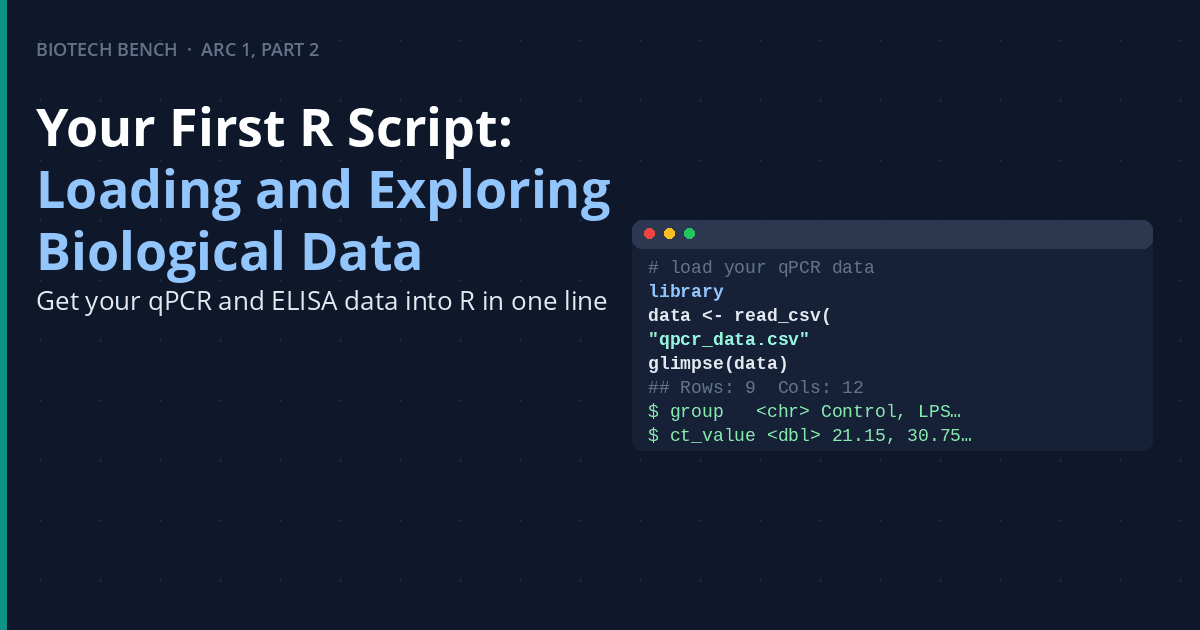
Getting your lab data from Excel into R is the first step. Once you're there, the real exploration begins.
This is Arc 1, Part 2 of the R for Biologists series.
You've Installed R. Now What?
Let me guess: you went through the trouble of installing R and RStudio, maybe even worked through some of those swirl tutorials. You can type 2 + 2 and get 4. You understand what a variable is. But now you're staring at your actual lab data — a spreadsheet with 200 rows of qPCR results or ELISA readings — and you have no idea how to get it into R, let alone analyze it.
Sound familiar?
This is where most tutorials stop and most biologists get stuck. You don't need another lesson on c(1, 2, 3) or toy datasets about iris flowers. You need to know how to load your data and start exploring it.
That's what this post is for.
What you'll learn (in 15 minutes)
By the end of this, you'll know how to:
- Get your Excel or CSV data into R
- Look at your data to make sure it loaded correctly
- Ask basic questions about your dataset (how many rows? what are the column names? what's the average?)
- Handle the most common loading problems (missing values, weird column names, wrong data types)
We're not doing statistics yet. We're not making plots yet. We're just getting your data into R and making sure you can explore it. Think of this as "data reconnaissance."
Step 0: Get your data ready
Before you touch R, make sure your data is in a reasonable format. R can read almost anything, but your life will be easier if you follow these rules:
- Save it as CSV — Excel files (
.xlsx) can be read, but CSV (.csv) is simpler and less error-prone - One header row — The first row should have column names, and the second row should start your data (no blank rows, no multi-level headers)
- Clean column names — No spaces, no special characters. Use underscores:
gene_name, notGene Name (normalized) - One sheet — If your data lives across multiple sheets, save each one as its own CSV
For this tutorial, we'll use a simulated qPCR dataset that looks exactly like something you'd export from your thermocycler software. Download it here: qpcr_data.csv — or use your own data and follow along.
Step 1: Set your working directory
R needs to know where to look for files. The easiest way is to put your CSV file in a folder and tell R to work from there.
In RStudio, go to Session → Set Working Directory → Choose Directory, and select the folder where you saved your CSV. Or you can do it in code:
setwd("/path/to/your/folder")
Replace the path with wherever your file actually lives. On a Mac it might look like /Users/yourname/Desktop/my_data. On Windows, C:/Users/yourname/Desktop/my_data (note: forward slashes, not backslashes).
You can check that it worked:
getwd()
[1] "/Users/yourname/Desktop/my_data"
R will print your current working directory. If you see your folder path, you're set.
Step 2: Load your data
Now the actual loading. The workhorse function here is read.csv():
data <- read.csv("qpcr_data.csv")
That's it. R reads the file, converts it into a data frame (R's version of a spreadsheet), and stores it in a variable called data. You can name it whatever you want — qpcr, experiment1, my_data — just make it something you'll remember.
If your file is Excel instead of CSV
Install the readxl package (free and open-source) and use read_excel() instead:
install.packages("readxl")
library(readxl)

data <- read_excel("qpcr_data.xlsx")
The install.packages() line only needs to run once. After that, just use library(readxl) at the top of your script.
Step 3: Look at what you loaded
This is the most important step that tutorials skip. Before you do anything with your data, look at it. Make sure R read it the way you expected.
# See the first 6 rows
head(data)
  sample_id treatment ct_value replicate
1    S01_R1   Control    21.15         1
2    S02_R1   Control    22.08         1
3    S03_R1   Control    20.91         1
4    S04_R1   Control    21.33         2
5    S05_R1   Control    21.50         2
6    S06_R1   Control    22.15         2
# See the last 6 rows
tail(data)
   sample_id treatment ct_value replicate
31    S31_R1  LPS_10ng    24.82         1
32    S32_R1  LPS_10ng    23.95         1
33    S33_R1  LPS_10ng    24.20         2
34    S34_R1  LPS_10ng    23.71         2
35    S35_R1  LPS_10ng       NA         2
36    S36_R1  LPS_10ng    24.61         2
# Get a summary of every column
str(data)
'data.frame':	36 obs. of  4 variables:
 $ sample_id : chr  "S01_R1" "S02_R1" "S03_R1" "S04_R1" ...
 $ treatment : chr  "Control" "Control" "Control" "Control" ...
 $ ct_value  : num  21.2 22.1 20.9 21.3 21.5 ...
 $ replicate : int  1 1 1 2 2 2 ...
str() is your best friend here. It shows you the structure of your data — how many rows, how many columns, and what type each column is. You want to see:
numorintfor numberschrfor text/character columnsFactorfor categorical variables
If a column that should contain numbers shows up as chr, that's a sign something went wrong during loading (usually a stray character like a dash or the word "NA" somewhere in the column).
A quick look at the whole dataset
# How many rows and columns?
dim(data)
[1] 36 4
# What are the column names?
names(data)
[1] "sample_id" "treatment" "ct_value" "replicate"
# A spreadsheet-like view (opens in RStudio viewer)
View(data)
View(data) opens an interactive spreadsheet view in RStudio — this is often the quickest way to spot problems.
Step 4: Ask basic questions about your data
Once you've confirmed it loaded correctly, start exploring. Here are the questions you'd naturally ask about a biological dataset:
# How many samples are there?
nrow(data)
[1] 36
# What are the unique treatment groups?
unique(data$treatment)
[1] "Control" "LPS_1ng" "LPS_10ng"
# What's the average Ct value?
mean(data$ct_value)
[1] NA
# What's the range?
range(data$ct_value)
[1] NA NA
mean() and range() return NA because the dataset has two missing values — summary() below handles them gracefully. We deal with NAs directly in the next section.
# Summary stats for every column at once
summary(data)
  sample_id          treatment           ct_value       replicate
 Length:36          Length:36          Min.   :20.08   Min.   :1.0
 Class :character   Class :character   1st Qu.:23.41   1st Qu.:1.0
 Mode  :character   Mode  :character   Median :26.85   Median :1.5
                                       Mean   :27.34   Mean   :1.5
                                       3rd Qu.:31.22   3rd Qu.:2.0
                                       Max.   :35.92   Max.   :2.0
                                       NA's   :2
Notice the $ — that's how you grab a specific column from a data frame. data$ct_value means "the ct_value column from the data data frame."
summary() is surprisingly useful. For numeric columns it gives you min, max, mean, median, and quartiles. For character columns it shows you how many unique values there are.
Handling the most common problems
Missing values
In R, missing data shows up as NA. If your spreadsheet has empty cells, they become NA when loaded. Most functions will refuse to work if there are NAs:
mean(data$ct_value)
[1] NA
Fix it by telling the function to ignore NAs:
mean(data$ct_value, na.rm = TRUE)
[1] 27.34
To find out how many NAs you have:
sum(is.na(data$ct_value))
[1] 2
Column names with spaces or special characters
If your column names have spaces (e.g., Ct Value), R wraps them in backticks:
mean(data$`Ct Value`)
It works, but it's annoying. Better to rename them upfront:
names(data) <- c("sample_id", "treatment", "ct_value", "replicate")
Or use the janitor package (free and open-source), which automatically cleans messy column names:
install.packages("janitor")
library(janitor)

data <- clean_names(data)
clean_names() converts everything to lowercase with underscores. Ct Value becomes ct_value. It's one of those functions that saves you a lot of annoyance.
Numbers loaded as text
If a numeric column is showing up as chr, it means R found something non-numeric in that column. Common culprits: a stray space, the word "N/A" instead of a blank cell, or a unit symbol like "µL" in the data.
Find the problem rows:
# Which rows aren't numeric?
which(is.na(as.numeric(data$ct_value)))
[1] 12 28
Then fix the original CSV and reload — or fix it in R if it's a simple issue.
The honest truth about data loading
Here's something no tutorial tells you: loading your data is often the hardest part. Real lab data is messy. It has merged cells, extra header rows, notes in the margins, inconsistent column names across experiments. You will spend time on this.
That's not a sign you're doing it wrong. It's just the reality of biology data. The good news is that once you've cleaned your data and saved it as a proper CSV, loading it in R takes one line. Future you will thank present you.
What's next
You now know how to get data into R and start exploring it. The next post covers dplyr — the tool that makes filtering, grouping, and summarizing your data feel almost like writing plain English. If you've ever wrestled with complex Excel formulas just to get a mean by group, you're going to like this.
→ Next: How to clean and organize your lab data in R with dplyr
Have a dataset that's giving you trouble to load? Drop a comment below with what you're seeing — chances are someone else has hit the same wall.
Resources
| Resource | What it is | Link |
|---|---|---|
readxl | Read Excel files into R | readxl.tidyverse.org |
janitor | Clean messy column names automatically | CRAN: janitor |
read.csv() docs | Base R CSV reading function | Built into R — run ?read.csv |
| Sample qPCR dataset | The dataset used in this post | qpcr_data.csv |
Keep reading
From raw data to final figure: a complete R workflow for bench biologists
Six steps from raw CSV to a publication-ready figure with significance bars. A complete, copy-paste-ready R workflow using dplyr, ggplot2, and ggsignif — built on the qPCR dataset from Arc 1.
T-tests and ANOVA in R: lab stats without GraphPad Prism
t.test() and aov() replace ten minutes of clicking in GraphPad Prism. Here is how to run t-tests, ANOVA, and post-hoc comparisons on your qPCR data — with code you can actually reproduce.
Making publication-ready figures in R with ggplot2
ggplot2 turns your summarized qPCR data into publication-ready figures in a dozen lines of code. Here is how to build dot plots, bar charts, and multi-panel figures — and export them at 300 dpi without touching GraphPad.